WRISTGRID GUIDE
How to add a Garmin widget to your iPhone Home Screen
To get a Garmin widget on your iPhone Home Screen you need a companion app that turns your watch's metrics into iOS widgets — Garmin Connect doesn't ship one. With WristGrid on your iPhone and paired to your watch, you add its widgets like any other iPhone widget. WristGrid is available on the App Store.
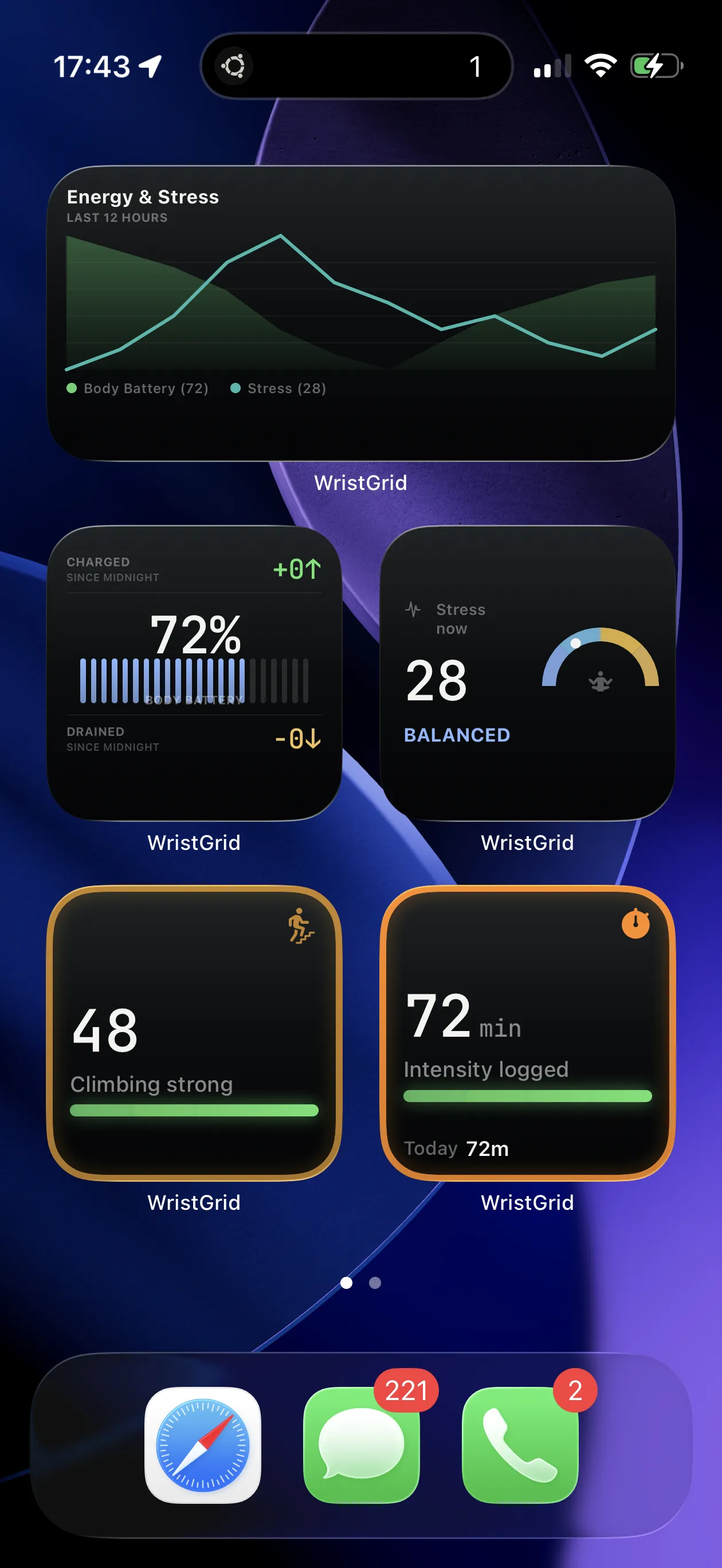
Add a WristGrid widget from the iPhone widget gallery like any other widget.
What you'll set up
The stack is simple: a Garmin watch with a currently supported profile — Instinct 2S, vivoactive 5, or Forerunner 265 — → GW Bridge (Connect IQ) → WristGrid on iPhone → WidgetKit Home Screen / Lock Screen placements.
Garmin Connect remains useful for deep history; WristGrid’s job is glanceable surfaces on the phone you already unlock dozens of times a day.
Step 1 — Pair your watch
Add GW Bridge on a Garmin watch with a currently supported profile — Instinct 2S, vivoactive 5, or Forerunner 265 — from the Connect IQ Store. Keep Bluetooth on and follow WristGrid’s in-app pairing so the companion can feed selected Garmin-native metrics.
If pairing fails, confirm the watch model is supported, GW Bridge is the active Connect IQ app for bridging, and the phone is nearby. Re-open WristGrid after the watch finishes sending data.
Step 2 — Add the Home Screen widget
Long-press an empty area on the Home Screen, tap the +, and search for WristGrid. Pick a size: compact square widgets work well for a single score; wider families fit steps progress or multi-metric glances.
Choose the metric you care about most first — Body Battery and stress are popular morning checks; steps and distance help during the day; sleep score belongs on the screen you see when you wake up.
Step 3 — Glance and refine
Widgets refresh periodically from the watch-side data path, typically within 15–60 minutes as controlled by WidgetKit. You can stack several WristGrid widgets, mix Home Screen and Lock Screen, or keep a single Body Battery tile if you want a minimal layout.
For Lock Screen circular widgets, see the dedicated Lock Screen guide. For metric-specific deep dives, use the Body Battery, sleep, stress, recovery, and steps guides linked below.
Troubleshooting
Widget shows dashes or stale values: unlock the phone, open WristGrid once, confirm the watch is nearby, and wait for the next refresh cycle.
WristGrid missing from the widget gallery: open the app first so iOS registers its WidgetKit extensions, then try the gallery again. WristGrid is available on the App Store.
WristGrid is an independent product and is not affiliated with, endorsed by, or sponsored by Garmin. Garmin and Connect IQ are trademarks of Garmin Ltd.
FAQ
Frequently asked questions.
How do I add a Garmin widget to my iPhone?
Pair your Garmin watch with a currently supported profile — Instinct 2S, vivoactive 5, or Forerunner 265 — via GW Bridge, then add a WristGrid widget from the iPhone Home Screen widget gallery.
Which Garmin metrics can be iPhone widgets?
Supported WristGrid widgets can include Garmin-native Body Battery, Stress, Recovery time, Steps, Distance, and VO2max, plus WristGrid-derived sleep and recovery scores, depending on your device and companion setup.
How often do the widgets refresh?
WristGrid refreshes periodically from your watch via the GW Bridge path, typically within 15–60 minutes as controlled by WidgetKit; open the app if a widget looks stale.
Does Garmin Connect offer the same Home Screen widgets?
No. Garmin Connect does not ship native iPhone Home Screen widgets; WristGrid fills that gap.
NEXT STEP
Put your Garmin metrics on your iPhone.
Now on the App Store