WRISTGRID GUIDE
Garmin Lock Screen widgets for iPhone, explained
The iPhone Lock Screen is the fastest place to check a metric. WristGrid lets you add circular Lock Screen widgets for your Garmin Body Battery, stress, and other metrics — something Garmin Connect doesn't offer.
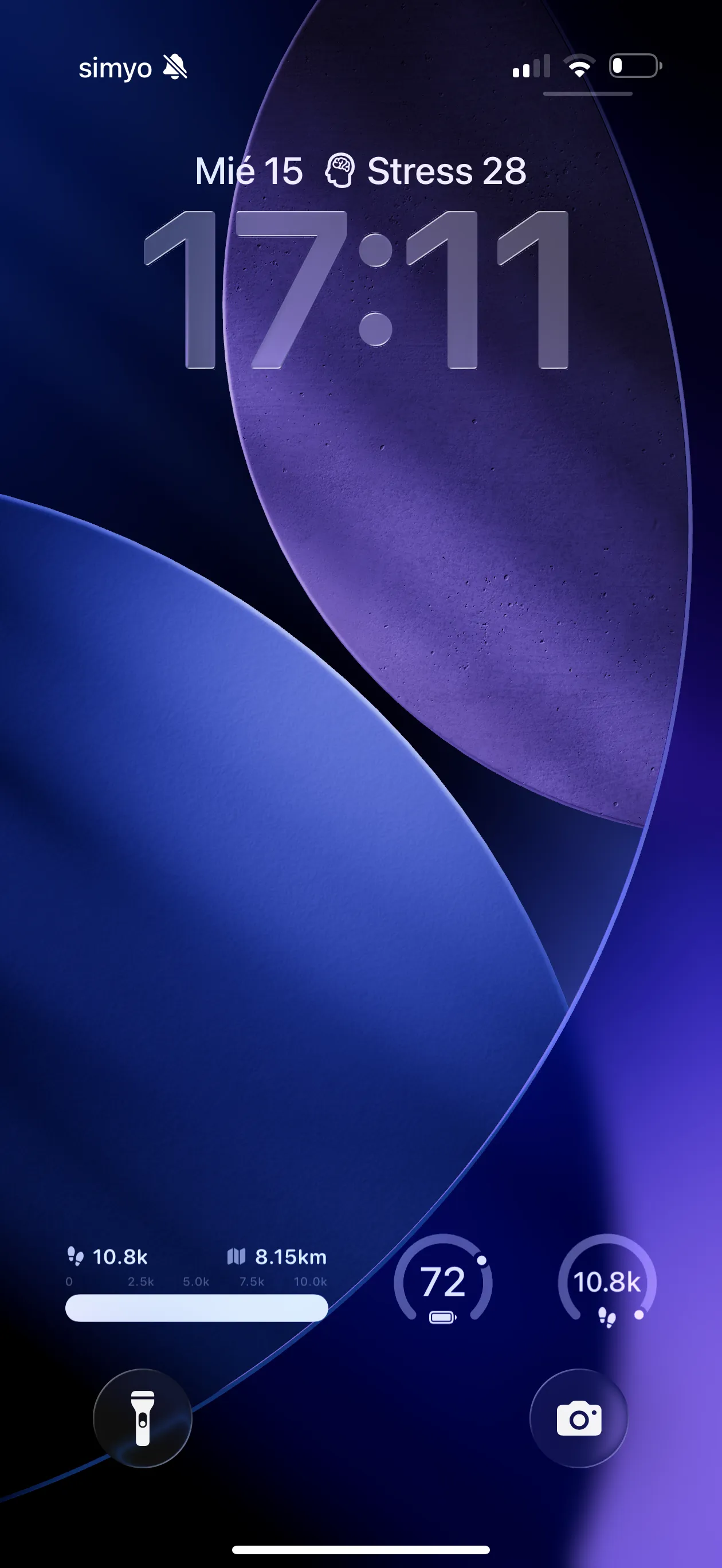
Circular Lock Screen widgets for Body Battery, stress, and more.
Lock Screen vs Home Screen widgets
Lock Screen widgets are small, circular, and always visible before unlock; Home Screen widgets can be larger with more detail and progress bars. WristGrid supports both so you can keep a tiny Body Battery by the clock and a richer briefing on the Home Screen.
Which metrics fit the Lock Screen
Compact gauges like Body Battery and Stress are ideal for circular Lock Screen widgets. Steps progress and multi-metric layouts usually belong on the Home Screen where there is more space.
How to set it up
Pair your watch with WristGrid via GW Bridge, then customize your Lock Screen and add the WristGrid widget you want. If WristGrid does not appear, open the app once so iOS registers its extensions.
WristGrid is an independent product and is not affiliated with, endorsed by, or sponsored by Garmin. Garmin and Connect IQ are trademarks of Garmin Ltd.
FAQ
Frequently asked questions.
Can I add a Garmin widget to my iPhone Lock Screen?
Yes — WristGrid offers circular Lock Screen widgets for Garmin metrics like Body Battery and stress.
What's the difference between Lock Screen and Home Screen widgets?
Lock Screen widgets are small and circular; Home Screen widgets are larger with more detail. WristGrid supports both.
Do Lock Screen widgets update?
Lock Screen widgets refresh periodically from your watch via GW Bridge, with timing controlled by WidgetKit.
NEXT STEP
Put your Garmin metrics on your iPhone.
Now on the App Store